

Published: September 15, 2026
Introduction to Chrome's ad detection
Ad detection identifies ad-related resources and frames to provide the browser with the data necessary to distinguish between primary and advertising content.
This system serves a dual purpose. First, it enables the browser to measure ad footprint and resource density, which can be used for providing transparency to publishers, advertisers and others interested in understanding sites' ad experiences. Second, it provides the data required for browser-level interventions, such as unloading ads that consume excessive CPU or network resources.
For developers and ad tech engineers, understanding how the browser classifies these resources can be helpful for understanding the resulting metrics and debugging ad-related issues in Chrome.
How ad detection works
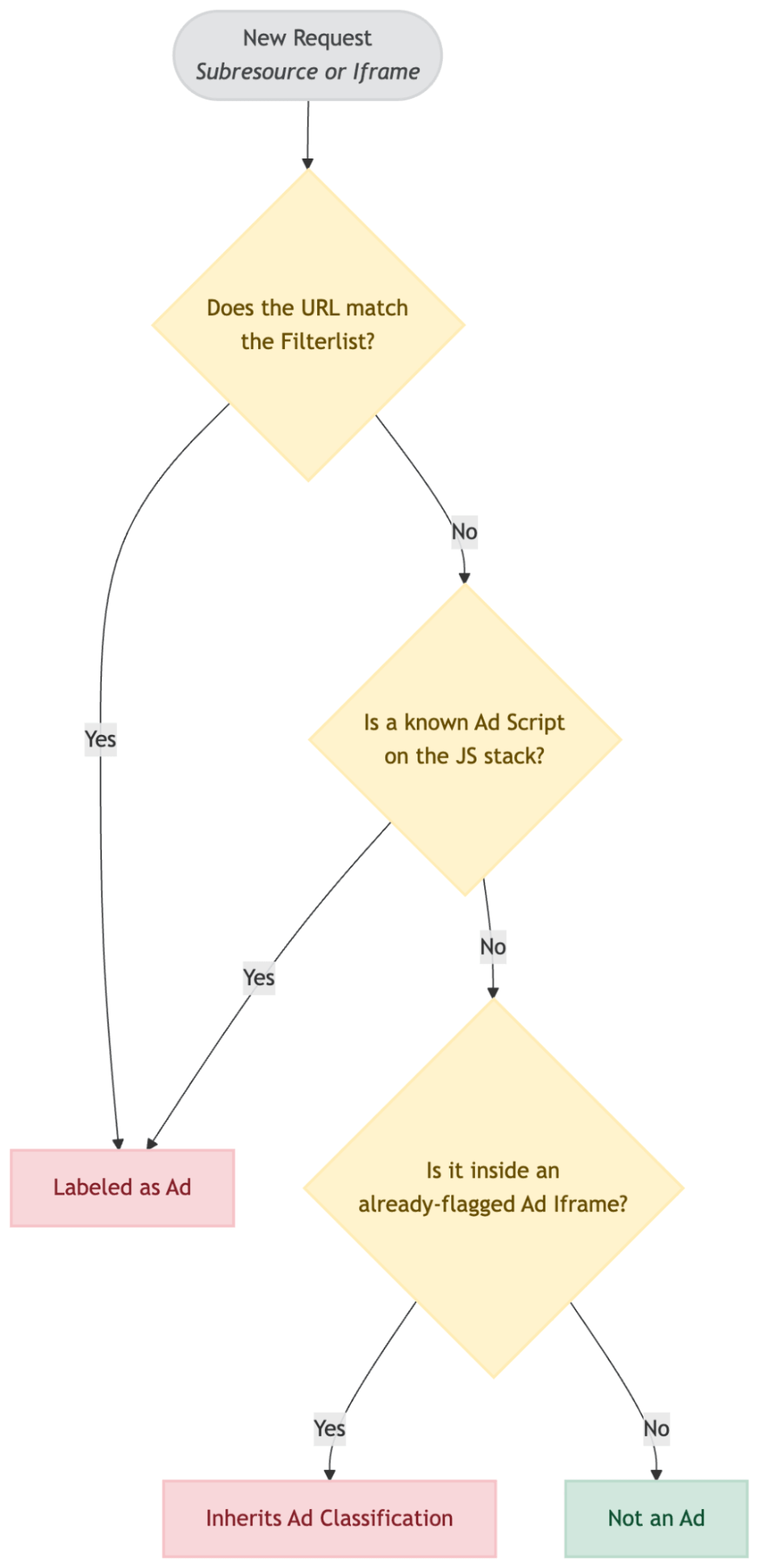
Chrome's ad detection identifies ads through a combination of network-level filtering and script execution analysis.
Here are the core rules Chrome uses to classify a resource or frame as an ad:
- Filter list matching: Chrome evaluates subresource and iframe navigation requests before they are sent. If the request URL matches a rule on its filter list the browser identifies the request as ad-related. The filter list is a condensed version of EasyList, a widely used, open-source set of filtering rules designed to automatically detect and remove unwanted advertisements, banners, and frames from websites.
- JavaScript stack analysis: Chrome also classifies any subresource or frame that is requested on behalf of an identified ad script. When subresources are requested or iframes are created, Chrome checks the Javascript stack and will label the new resource or frame as an ad if an ad script is on the stack at that time.
- Frame classification is sticky: If an iframe is flagged as an ad (either by matching the filter list or being created by an ad script), every subsequent subresource request initiated within that frame automatically inherits the ad classification. This designation remains fixed, even if the iframe later navigates to a new destination unrelated to advertising.
The main frame itself will never be classified as an ad frame. However, subresources (such as scripts and media) that are used in the main frame, can be.
Debugging and testing for developers
Developers can monitor and test how their scripts are classified to ensure their site remains functional while adhering to performance standards.
DevTools support
Developers can use Chrome DevTools to troubleshoot detection:
Application panel ads tab: Using the ads tab in the application panel, Toggle the Highlight Ads checkbox for visual validation. The browser overlays ad frames with a distinct red highlight so you can see exactly what was flagged. You can also view the local measurement of CrUX ad metrics in the ads tab (Local measurements may differ from CrUX aggregate reports due to the nature of field reporting and depending on the presence of ads.txt with authorised sellers).
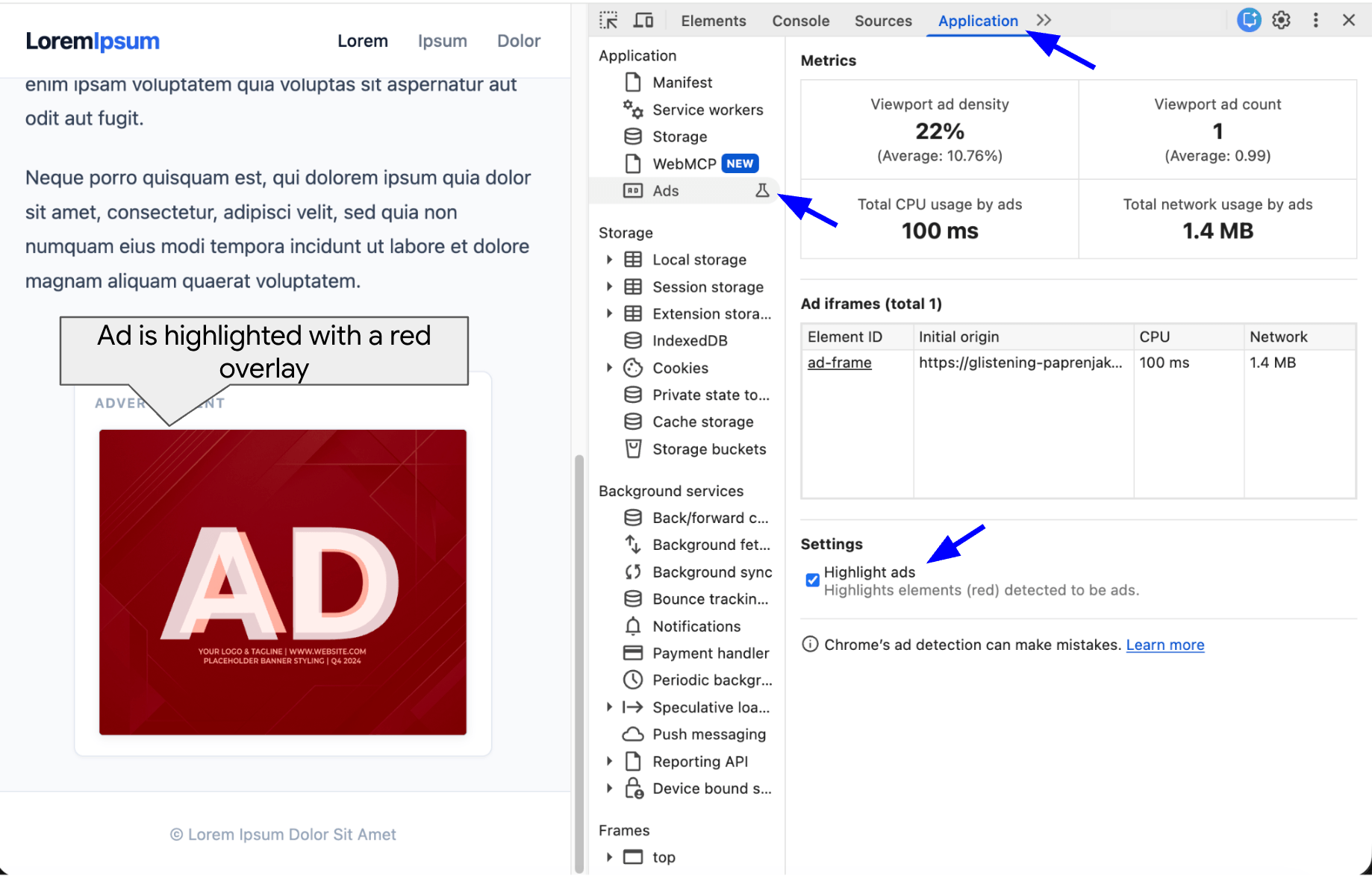
Chrome DevTools ads tab in the application panel showing the Highlight ads toggle Application panel: In the Frames > Document view, look under Ad Status for individual frames to verify why it was identified as an ad.
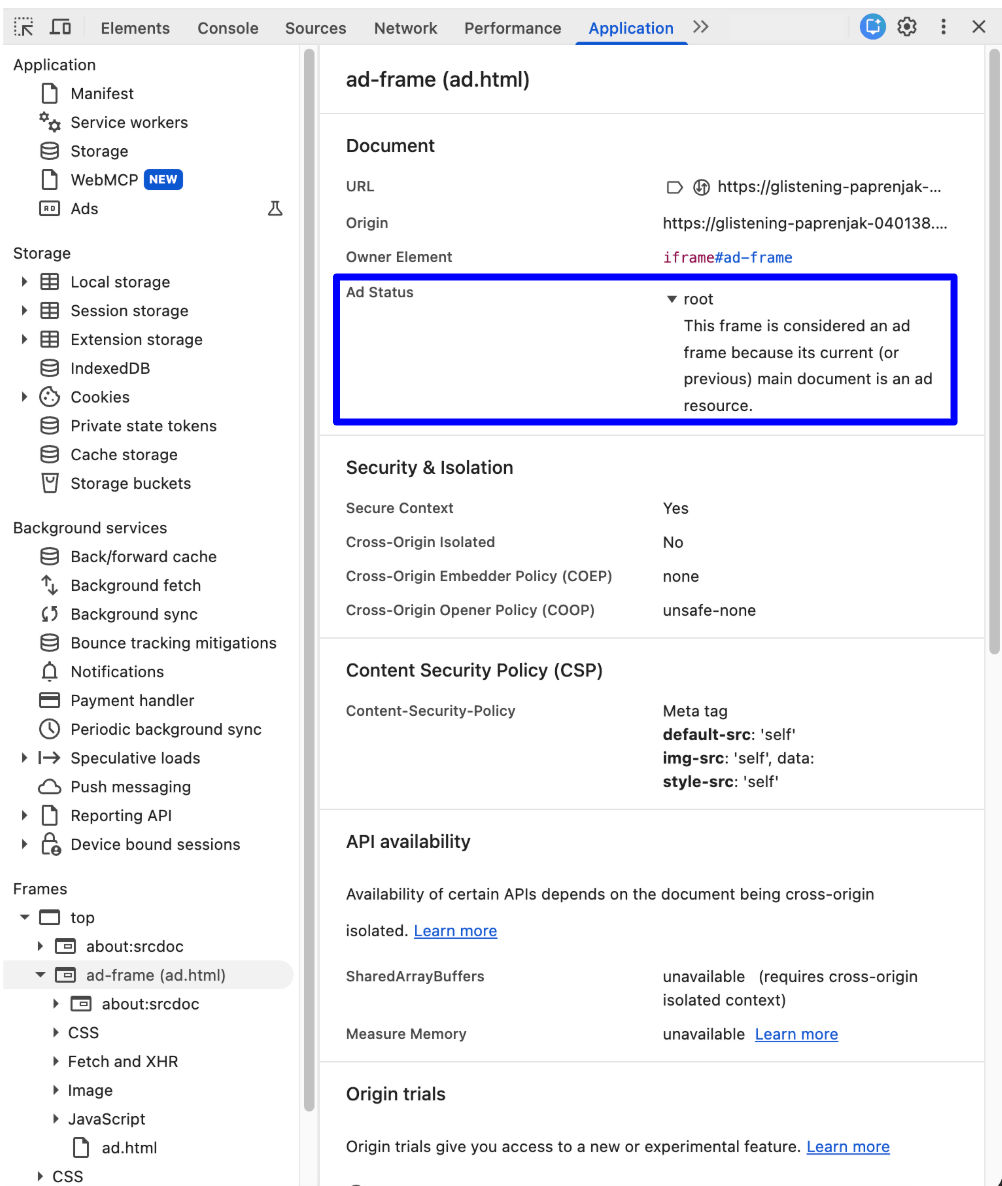
Chrome DevTools application panel showing a selected frame and highlighting the ad status field in the Document information for the frame. Network panel: Toggle the visibility of the Is ad-related column in the right-click menu on any existing column header to view how each network request is classified.
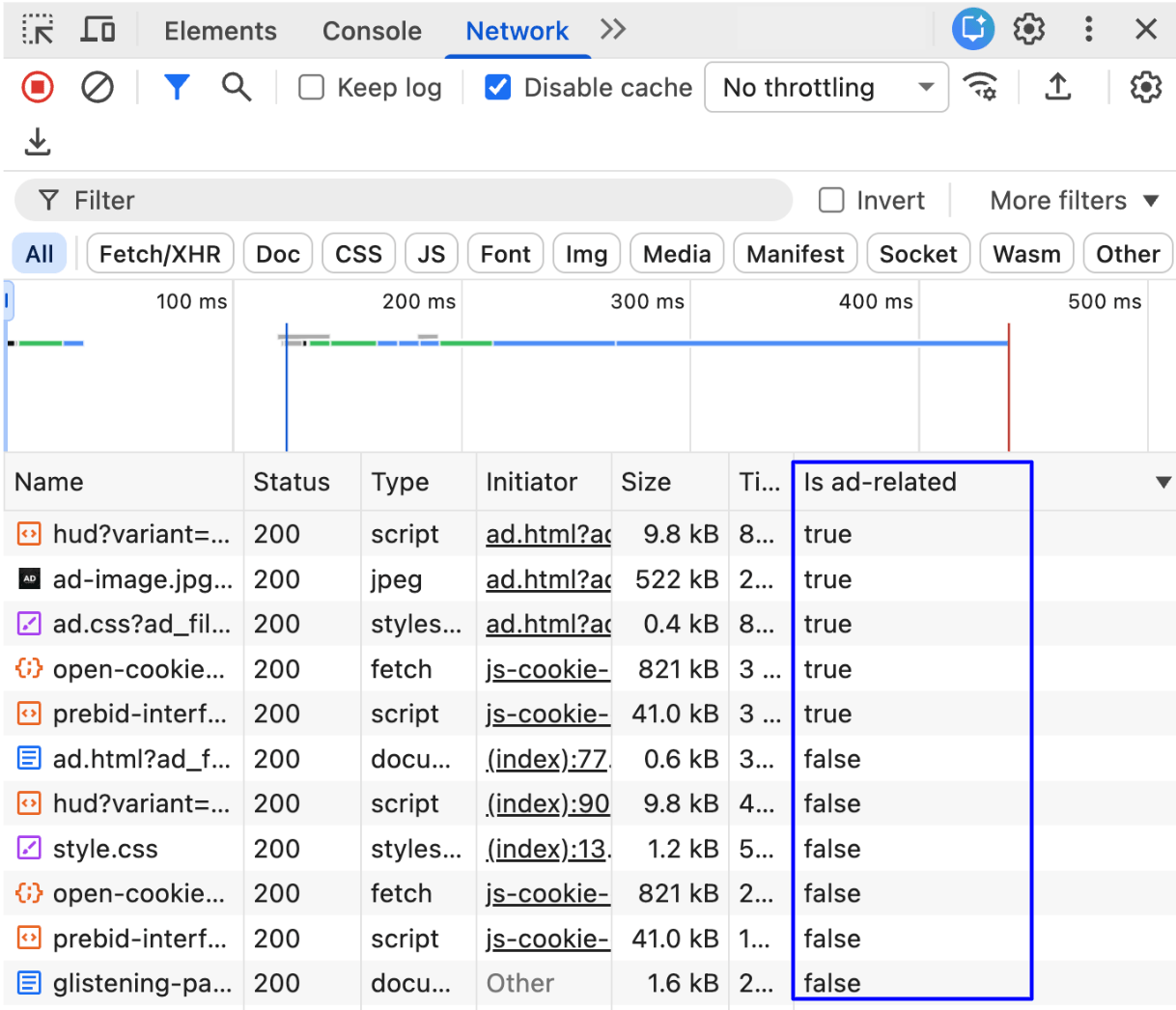
Chrome DevTools network tab with the "is Ad-Related" column enabled and highlighted. Elements panel Look for the ad adorner next to elements. Hovering over it reveals a tooltip, showing you the specific reason for the classification.
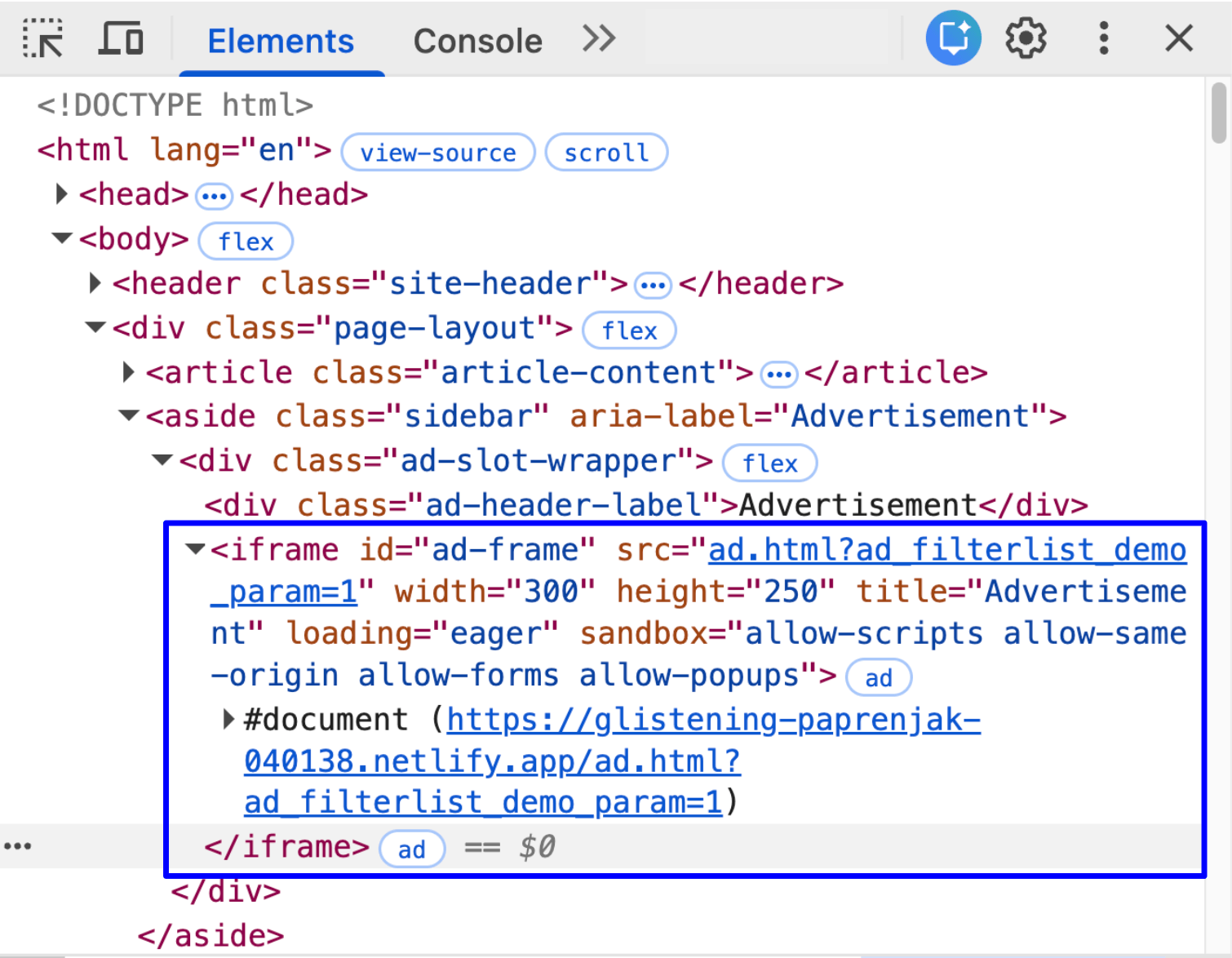
Chrome DevTools elements tab showing an element with the ad adorner highlighted next to it.
Manual testing with demo rule
To simplify testing, Chrome includes a filterlist rule that developers can use to manually trigger ad classification. By adding the query parameter ?ad_filterlist_demo_param=1 to any request URL or path, Chrome automatically considers that request ad-related for testing purposes.
Feedback
If you have any questions or feedback regarding ad metrics, reach out to us at the Chrome UX Report Google Group.